Posts
Add project phases and historical context with Time Bands
Milestones tell you when something happened. Phases explain the wider period it belonged to: research, construction, an exhibition season or a historical era. Time Bands put that context alongside the time axis without adding another row of event cards.
Use an article for an item readers should select and inspect. Use a Time Band for background context. A phase that needs its own details panel may deserve an article too, but a band alone does not provide the same card interactions.
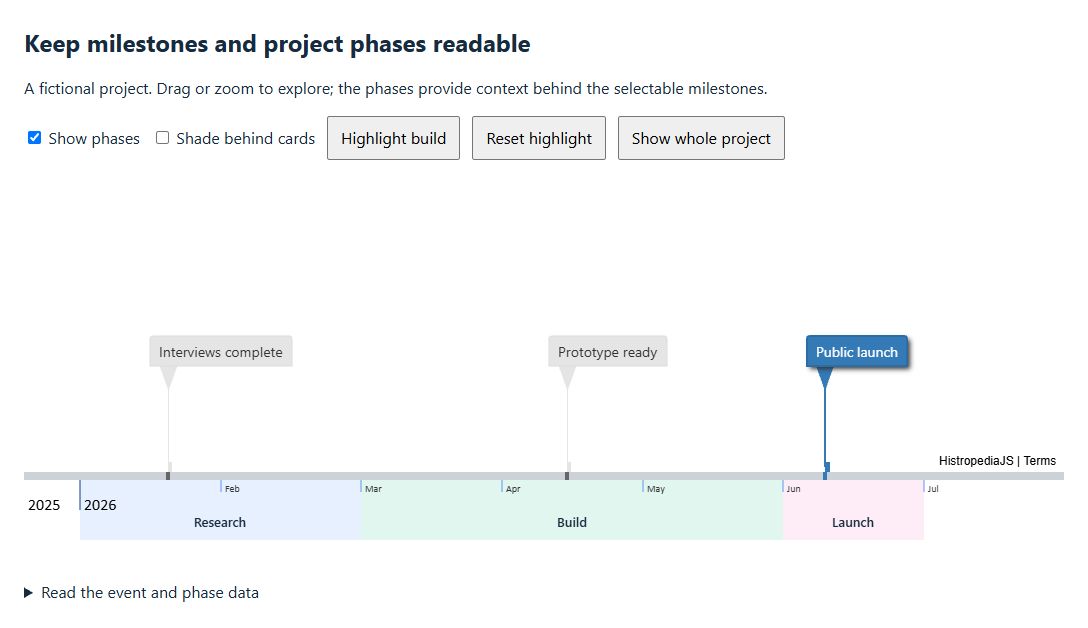
This walkthrough uses HistropediaJS 1.7.0 and a fictional six-month project. Open example in CodePen to hide the phases, shade behind the cards and highlight the build period. Choose Use Template in CodePen to create your own editable copy of the HTML, CSS and JavaScript; no build tool is needed.
Start with a narrow strip
Add a container to your page:
<div id="timeline" style="width: 100%; height: 420px"></div>
Install [email protected] through your build tool and run the following after the container exists. The installation guide covers npm and script tags.
import { Timeline, UNSET } from 'histropediajs';

const container = document.getElementById('timeline');
const timeline = new Timeline(container, {
  width: container.clientWidth,
  height: container.clientHeight,
  article: {
    defaultCardLayout: 'label',
    cardLayoutBreakpoints: [],
    star: { visible: false },
    defaultStyle: { maxWidth: 180 },
    distanceToBaseline: { value: 140, responsive: { active: false } },
  },
  timeBand: {
    reserveSpace: true,
    reserveSpacePixels: 64,
    area: { up: 0, down: 64 },
    defaultStyle: {
      border: { width: 0 },
      text: {
        color: '#172b40', font: '600 13px system-ui, sans-serif',
        align: 'center', verticalAlign: 'bottom', baseline: 'bottom', margin: 10,
      },
    },
    data: [
      {
        id: 'research', title: 'Research',
        from: { year: 2026, month: 1, day: 1 },
        to: { year: 2026, month: 2, day: 28 },
        style: { backgroundColor: 'rgba(59, 130, 246, 0.12)' },
      },
      {
        id: 'build', title: 'Build',
        from: { year: 2026, month: 3, day: 1 },
        to: { year: 2026, month: 5, day: 31 },
        style: { backgroundColor: 'rgba(16, 185, 129, 0.13)' },
      },
      {
        id: 'launch', title: 'Launch',
        from: { year: 2026, month: 6, day: 1 },
        to: { year: 2026, month: 6, day: 30 },
        style: { backgroundColor: 'rgba(244, 114, 182, 0.13)' },
      },
    ],
  },
});

timeline.load([
  { id: 'interviews', title: 'Interviews complete', from: { year: 2026, month: 1, day: 20 } },
  { id: 'prototype', title: 'Prototype ready', from: { year: 2026, month: 4, day: 15 } },
  { id: 'public-launch', title: 'Public launch', from: { year: 2026, month: 6, day: 10 } },
]);

timeline.fitDateRange('2026-01-01', '2026-07-01', {
  padding: { left: 56, right: 140 },
});
Two settings do different jobs. area controls where bands are painted relative to the main line. reserveSpacePixels adds space below the line while visible bands are loaded, moving the line and dependent layout upwards. It does not set band height or automatically prevent label collisions.
Here both are 64 pixels. The month and year markers use the top of the strip; phase names sit at its bottom with a 10-pixel margin. Setting both verticalAlign and baseline to 'bottom' keeps the names below the date labels, including when the viewport width changes. Centring the names in a shorter strip can put Research on top of February’s marker.
down: 'edge' would extend to the bottom of the canvas; it would not shade the area above the line. To extend behind the cards, change up:
// Optional alternative: retain the strip and also shade above the line.
timeline.setOption('timeBand.area.up', 'edge');
Keep fills translucent so they do not overwhelm cards and other visual encodings. A full-height background is useful for large eras, while a strip often works better for a busy project timeline.
Fit the context as well as the events
The last milestone occurs on 10 June, but the launch phase continues to the end of June. fitArticles() frames article dates; it does not automatically include the Time Bands. We use fitDateRange() with the project boundaries so that the whole phase is visible.
Date fitting does not add room for card widths as fitArticles() does. The left padding keeps the year label beside the January boundary inside the canvas; the larger right padding leaves space for the Public launch label on a narrow screen. Check both the background range and the cards at your smallest supported width.
The bands use day precision, with each to date covering its named final day. The requested fit range ends at the start of 1 July, with padding leaving additional room beyond it. Using 1 March as both the Research end day and Build start day would make those bands overlap on that day.
For dates known only to a year, specify precision: 'year'. For an end known only to a month, specify precision: 'month' with the relevant year and month. Omitting fields alone does not select that coarser precision. See the date precision reference before mapping historical or uncertain dates.
When a historical period’s boundaries are interpretations, explain that in the surrounding text. A neat coloured rectangle should not imply more certainty than the source supports.
Toggle context without rebuilding the timeline
Add a checkbox before the container:
<label><input id="show-context" type="checkbox" checked> Show phases</label>
Then connect it to the existing timeline:
document.getElementById('show-context').addEventListener('change', (event) => {
  timeline.setOption('timeBand.visible', event.target.checked);
});
This keeps the bands loaded and leaves the article data intact. Their reserved space is released when they are hidden, so the vertical layout may move. If that movement is undesirable, use reserveSpace: false and provide a consistent amount of room through your timeline’s layout instead.
Update an existing band through its instance
loadTimeBands() adds bands with new IDs. It does not replace the existing collection, and an existing ID is skipped rather than updated. This makes repeated calls with edited data an easy source of confusing results.
Find the loaded instance when you want to change it:
const build = timeline.timeBands.find((band) => band.id === 'build');
build.setStyle('border', { width: 2, color: '#047857' });

// Later, remove the highlight and inherit the default border again.
build.setStyle('border', UNSET);
Use build.setOption(...) for a title or date change. If Build finishes earlier, update Launch as well so that adjacent phases still meet:
const launch = timeline.timeBands.find((band) => band.id === 'launch');
build.setOption('to', { year: 2026, month: 5, day: 15 });
launch.setOption('from', { year: 2026, month: 5, day: 16 });
Keep overlapping periods legible
Time Bands can overlap, but their labels do not stack or avoid one another like article cards. Begin with a few broad periods. If two labelled ranges regularly collide, shorten the labels, show one context layer at a time, or use articles in separate lanes when those ranges need independent selection.
At narrow widths, even adjacent phases can have too little room for long labels. The example uses short phase names and includes a plain-text description below the timeline. Keep the same information available outside the canvas when it is essential to understanding the page.
For further experiments, use the Time Bands playground and the Time Band reference. The CodePen example also observes container size changes; disconnect that observer when you stop observing the container.