Posts
HistropediaJS 1.7.0 – ready-made cards, flexible sizing, and smoother navigation
Previous release: HistropediaJS v1.6.0
HistropediaJS 1.7.0 brings more flexibility to timeline cards, making it easier to display longer titles and subtitles without cutting off text. Cards can now grow to fit their content, with support for multi-line subtitles and configurable line limits to keep layouts readable.
We’ve also added six ready-made card presets, offering different ways to display events, from compact text labels to rounded cards with circular images. These make it easier to create a variety of timeline designs without writing a custom renderer.
Beyond card layouts, this release includes more control over inherited styles, reliable callbacks when timeline navigation completes, and smoother touchscreen interactions with momentum after pinch gestures.
Choose a card that suits the content
The six new presets build on the existing portrait and landscape layouts. You select them by name, just as you would either of the original layouts:
title-onlyandtitle-subtitlegive longer titles room to grow, with the option of a separate subtitle block for descriptions or extra detail.labelkeeps things compact with a single line of text and a configurable maximum width.image-textandimage-onlyput images centre stage, either with a short title and optional subtitle above them or with no text at all.pillis a rounded card with a single-line title, optional subtitle and circular thumbnail. It adjusts its width to fit the content, up to 360 pixels by default, and shortens overflowing text with an ellipsis. Its default height is 70 pixels, with text padding even when there is no image.
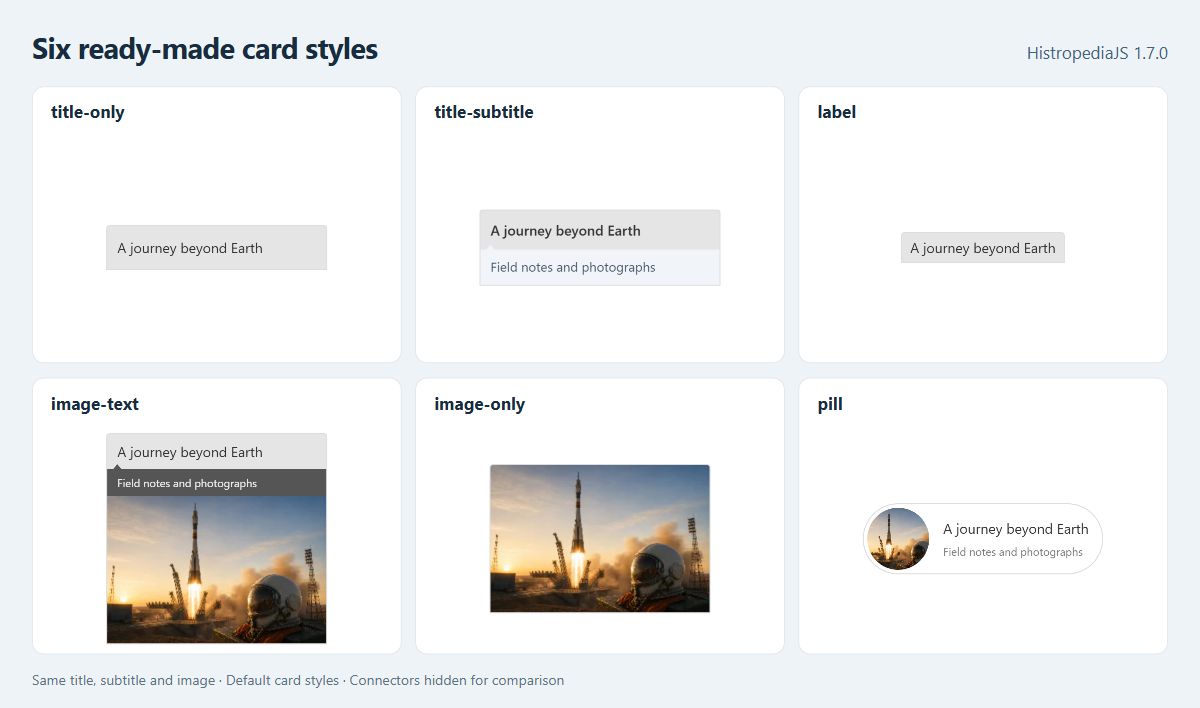
You can mix presets on the same timeline. For example, an exhibition programme might use a compact label for its opening date, a simple title card for a display, and a longer description for a talk.
To try this example, add <div id="timeline"></div> to your page and use the npm/ES module build through your project’s build tool. If you’re using script tags, use Histropedia.Timeline and Histropedia.UNSET instead of importing them (see Installation).
import { Timeline, UNSET } from 'histropediajs';

const container = document.getElementById('timeline');
const timeline = new Timeline(container, {
  width: container.clientWidth,
  height: 420,
  initialDate: '2026-10-01',
});

timeline.load([
  {
    id: 'opening',
    title: 'Archive opens',
    from: { year: 2026, month: 10, day: 1 },
    cardLayout: 'label',
  },
  {
    id: 'letters',
    title: 'Letters go on display in the reading room',
    from: { year: 2026, month: 10, day: 11 },
    cardLayout: 'title-only',
  },
  {
    id: 'talk',
    title: 'An evening with the archivists',
    subtitle: 'Discover how letters, photographs and field notes help us tell the story of a collection.',
    from: { year: 2026, month: 10, day: 21 },
    cardLayout: 'title-subtitle',
  },
]);

timeline.fitArticles({ padding: 32 });
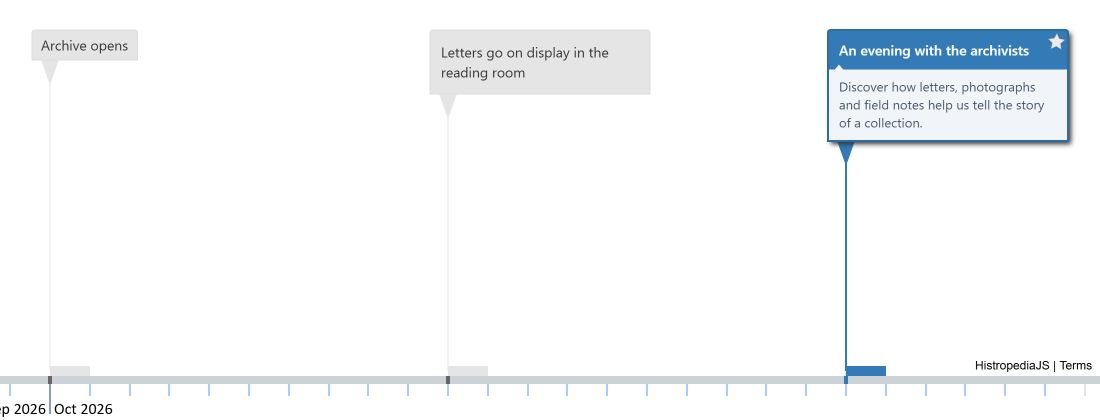
Setting cardLayout on an individual article takes priority over responsive layout choices. To use one preset throughout a timeline, set article.defaultCardLayout. You can also set article.cardLayoutBreakpoints: [] to stop the layout changing at different timeline heights.
All presets support the same style settings and overrides as portrait and landscape cards. You can customise their colours, dimensions, padding, fonts and other properties at the timeline or individual article level, without creating a new layout. The preset guide covers their defaults and image behaviour.
The image-only preset also handles missing images without collapsing into an empty line. While an image is loading, missing or unavailable, it shows a filled placeholder using style.backgroundColor (light grey, '#f0f0f0', by default). Fixed dimensions remain fixed; automatic dimensions use a square fallback within the size limits. There is no loading icon or fallback text, so choose image-text if the title needs to remain visible.
Let cards fit their text
Previously, fixed dimensions could leave too little space for longer titles and subtitles. Now you can let cards size themselves around their content.
Set width: 'auto' to calculate the width from the text and spacing, then use maxWidth to stop it getting too wide. Longer text wraps within that limit, up to the configured number of lines. A numeric width remains fixed and is not affected by maxWidth.
Both portrait and landscape cards now support automatic or fixed heights, text blocks that grow with their content, and multi-line subtitles. You can also adjust block padding and image margins to control the space around text and thumbnails.
The following example continues from the exhibition timeline above, giving the evening talk more room for its description:
const note = timeline.getArticleById('talk');

note.setStyle({
  width: 'auto',
  maxWidth: 280,
  height: 'auto',
  header: { height: 'auto', padding: 8 },
  subheader: {
    height: 'auto',
    padding: 8,
    text: { numberOfLines: 4 },
  },
});

timeline.fitArticles({ padding: 32 });
Automatic text blocks collapse when they have no content. By contrast, a card with a fixed height keeps that height, and content that does not fit may be clipped. The Article Sizing guide explains how text and images share the available space.
The image-only preset has its own sizing rules. With a fixed height and automatic width, it follows the loaded image’s aspect ratio. With both dimensions automatic, it starts from the preset’s default width (subject to maxWidth) and adjusts its height to fit the image. See image-only sizing for the full rules, including placeholder sizes.
Connectors are more customisable too. You can now set their colour, dash pattern and line caps, and control arrow visibility and colour separately. For example, this gives the talk a subtle dashed connector while letting the arrow follow the card’s current colour:
note.setStyle({
  connectorLine: {
    color: '#64748b',
    dash: [4, 3],
    lineCap: 'round',
    arrow: { visible: true, color: 'article' },
  },
});
You can experiment with these settings in the Card Presets and Sizing example. Expand Compare all nine layouts to see the six new presets alongside portrait, landscape and a custom soft-note layout. Each preview uses the same content, making their differences easier to see. Select one to load its default settings into the tester, then try changing the dimensions, text and connectors.
Build on an existing layout
You can customise any card preset using normal style settings. But if you find yourself repeatedly using the same combination of settings, you can register it as a reusable custom layout.
The new extends property makes this straightforward. It lets you create a layout based on portrait, landscape, any of the six presets, or another custom layout. The new layout inherits everything from its parent by default, but you can override any part of its definition, including drawing and measurement functions. In most cases, you’ll only need to change the default styles.
For example, you could register soft-note with extends: 'title-subtitle', then customise its defaultStyle, defaultHoverStyle and defaultActiveStyle. Articles can then use cardLayout: 'soft-note' just like any built-in layout. The example above includes soft-note as its ninth layout; expand Optional custom layout to see how it is registered.
Use Timeline.registerCardLayout() before creating the timeline, and register any custom parent before its children. You can also override individual drawing or measurement functions if you need a more substantial change. The layout inheritance guide has a complete example.
One detail to bear in mind: layout-specific style overrides use the new layout’s name. Overrides configured under portrait, for instance, do not automatically apply to a layout that extends it.
Reset styles without losing inheritance
Sometimes an article needs its own colour or spacing, but you want a reset button to restore whatever its timeline or lane currently specifies. Copying in today’s default value does not achieve that: it leaves an explicit override in place.
The new UNSET constant removes the override instead:
// Give this note its own title-block colour.
note.setStyle('header.color', '#dbeafe');

// Later, remove that override in your reset handler.
note.setStyle('header.color', UNSET);
The note now follows the next applicable inherited style, including any future changes to its timeline or lane. Only the specified override is removed; normal, hover and selected styles remain independent.
UNSET also works with option and style setters for timelines, lanes, charts and time bands, including sparse object patches. Use the constant itself: null, undefined and the string 'UNSET' do not have the same effect. The clearing overrides guide explains how to reset entire branches or remove an inherited default when extending a layout.
Know when navigation has finished
Guided tours, linked detail panels and other custom controls often need to do something once the timeline has finished moving. The new top-level onComplete callback gives you a consistent way to do that:
timeline.fitArticleRange(note, {
  padding: 48,
  animation: { active: true, duration: 500 },
  onComplete: () => {
    console.log('The evening talk is now in view.');
  },
});
The callback runs after the final viewport position has been applied and drawn. It also runs for immediate moves and requests that are already at their destination, so a sequence of navigation steps will not get stuck waiting for an animation that never starts. Combined pan-and-zoom moves call it once, and completion is always asynchronous.
If a move is interrupted by the user or replaced by another navigation request, its callback is cancelled. This includes cases where an event handler starts a new navigation while the previous one is in progress. Completion refers to the viewport, not to image loading or card animations.
Existing animation.complete, flat complete and positional zoomToAnim() callbacks still work, but now follow the same timing and cancellation rules. If both supported callback forms are supplied, onComplete takes precedence. See the navigation completion reference for the supported methods and exceptions, particularly if your code relied on callbacks running synchronously.
Smoother touch navigation
Pinching on a touchscreen now feels more natural. When you lift your fingers, both zooming and panning can continue with a short glide rather than stopping abruptly. The date beneath the moving midpoint of your fingers stays anchored during the gesture, and lifting one finger just before the other no longer causes an unwanted jump or fling.
Pinch momentum is enabled by default. You can turn off zoom inertia with zoom.pinchMomentum.active: false and pan inertia with pan.momentum.active: false. Disabling pan momentum also affects ordinary one-finger panning; touchpad behaviour is unchanged.
For event handlers, zoom-pinch-end marks the end of the gesture, but zoom events may continue while momentum settles. Use timeline-state-change when you need the final view. See the pinch momentum reference for more detail.
More consistent cards and rendering
We’ve also made several smaller improvements to how cards are selected and drawn on busy timelines.
Selected articles now take priority over starred articles, which in turn take priority over ordinary articles. Rank determines the order within each group, so an unusually high rank can no longer push a selected or starred article out of view. Density selection and stacking also avoid some repeated calculations, reducing redraw work.
Long titles and subtitles now make better use of their final visible line. Rather than squeezing oversized words into the available space, they shorten the text with an ellipsis.
Portrait and landscape cards also draw thicker hover and selection borders without moving the text, resizing images or changing the card’s height. Portrait cards no longer show thin seams between text-block backgrounds and images. Changes to layout settings such as padding or block heights will, of course, still affect the card’s dimensions.
Check existing card styles when upgrading
The new presets are optional, but some of the shared sizing changes also affect existing portrait and landscape cards. If you have customised their styles, check the following when upgrading:
- Shared heights apply more consistently. A numeric card
heightnow constrains portrait cards as well as landscape cards. Landscape also honours explicit text-block heights, subtitle line limits and block colours; zero-height blocks hide their text. If a setting was meant for only one layout, move it underarticle.layoutStyles.portraitorarticle.layoutStyles.landscape. The sizing migration guide includes a worked example. - Image height limits apply to every shape.
image.maxHeightnow limits automatic square and circular images in portrait cards and fixed-height landscape thumbnails, includingpill. If an image is smaller than before, increase the cap. Fixed card heights remain fixed, while automatically sized cards may shrink to follow the image. Default landscape thumbnails are unchanged. - Text may wrap or move slightly. Automatic sizing now uses full font bounds, and the default subtitle line spacing is 14 pixels. Landscape’s default image margin also adds a 4-pixel gap before the text, leaving slightly less room in fixed-width cards. Its star icon now overlays the content rather than reserving a column, so add padding if the text needs more clearance.
- Custom layouts may need an active subtitle colour. The dark selected-state subtitle background now belongs to portrait’s registered defaults rather than a global default. If your custom layout relied on it, set
defaultActiveStyle.subheader.color: '#333'when registering the layout, or extendportrait.
If you’re coming from v1.6.0, this release also includes the changes from two smaller updates. v1.6.1 added automatic precision inference from time fields and automatic height refitting when reserved vertical space changes. v1.6.2 fixed BCE article fitting, coarse date precision boundaries and parent labels around the BCE/CE transition. You can explore those boundaries in the BCE Precision example.
Visit Downloads and release notes to get HistropediaJS 1.7.0 and see the complete changelog.